Tuesday, February 12, 2013

Send list items to recycle bin


Let us see what happens when one deletes the list items. See the example below. I have few task list items.


And see the code below.


execute the code and check recycle bin of the site.

You will not find these deleted list items.


Let's add three more items and this time select three items and remove from the delete option from UI,


now go to the recycle bin and now you can see these three entries.


let's add three more items.


Let's change code a little.


run the code and the go to recycle bin. There you go, now you have the items in recycle bin which was deleted rather recycled programmatically.


Monday, February 11, 2013

Change Document Library folders title through Power Shell


In this post we will see how to change the title of the folders in document library.

Here is before running the script.


Here is the script. If you are not aware what is happening in this script, I would recommend reading get value from configuration file post.

[xml]$xmlfile = Get-Content ConfigFile.xml
 $site = ''
$web = ''
$listName = 'Shared Documents'
 foreach( $sitecoll in $xmlfile.Configuration.SiteCollection)
{
    $site = $sitecoll.name              
}
 $spSite= Get-SPSite $site
 $web = $spSite.OpenWeb()
 Write-Host -foregroundcolor Green 'Site URL' $site
 $list=$web.Lists.TryGetList($listName)
 foreach($folder in $list.Folders)
{
if($folder['Title'] -eq 'Folder1')
{
   $folder['Name'] = 'NewFolder1'
   $folder['Title'] = 'NewFolder1'
   } elseif($folder['Title'] -eq 'Folder2')
{
    $folder['Name'] = 'NewFolder2'
   $folder['Title'] = 'NewFolder2'
 }
 elseif($folder['Title'] -eq 'Folder3')
{
    $folder['Name'] = 'NewFolder3'
   $folder['Title'] = 'NewFolder3'
 }
 elseif($folder['Title'] -eq 'Folder4')
{
   $folder['Name'] = 'NewFolder4'
   $folder['Title'] = 'NewFolder4'
 }
 elseif($folder['Title'] -eq 'Folder5')
{
    $folder['Name'] = 'NewFolder5'
   $folder['Title'] = 'NewFolder5'
 }
 $folder.update()
 }

we are opening the site and then taking the reference of the library and then iterate through all folders of the library and then compare the title of the folder and then change folder properties.

Once you run the script, all folders names and title will be changed. 


I hope this helps.


Thursday, February 7, 2013

Get template name of SPWeb


You may need to get the template type from which the SPWeb has been created. You must be thinking that to get this is really easy, there must be a property which gets us this value.

Well, it is really but there is no direct property. There is one property of SPWeb called WebTemplate. Let's try that.


and the result is


Now change it to this


1033 is for English. You may need to change it depending on the English.

and here we go


I hope this helps

Wednesday, February 6, 2013

Get values from configuration file in Power Shell script


When you write a Power Shell script sometimes you may require to get some parameter values from the configuration file. While deployment usually we need to passing some values from the configuration file.

You can create configuration file and take those values from it to the PowerShell script. Example we may need to create sub sites or lists / libraries or content types etc. To do this you need site URL to be passed to the script.

You may also need to pass in list name with site URL post deployment when the system is in use and later you want to make any changes.

We can create XML file which has data that can be passed to the PowerShell.

Let's create one configuration file.


 here we have create one XML file which has top level element as configuration. inside that we have site collection where we have passed one site collection URL.

Let's now create one power shell script and get the value from XML file to the script.


What we have done is we took the xml file reference and then declared one variable in which we will store site URL.

After that we get the value of that specific site collection URL. We have written loop here because you can also define multiple <name> inside <site collection> tag.

As of now we are considering one single site collection.

and then we print the site URL in green color with Write-Host options.

Now open the SharePoint 2010 management shell.


and execute the script by typing ./PowerShellScript.ps1

and here is what you get.
In the same way, you can define as many tags as you like in XML file and can take those values inside the power shell script.

I hope this helps.


Tuesday, February 5, 2013

Get SharePoint Health Analyzer data programmatically


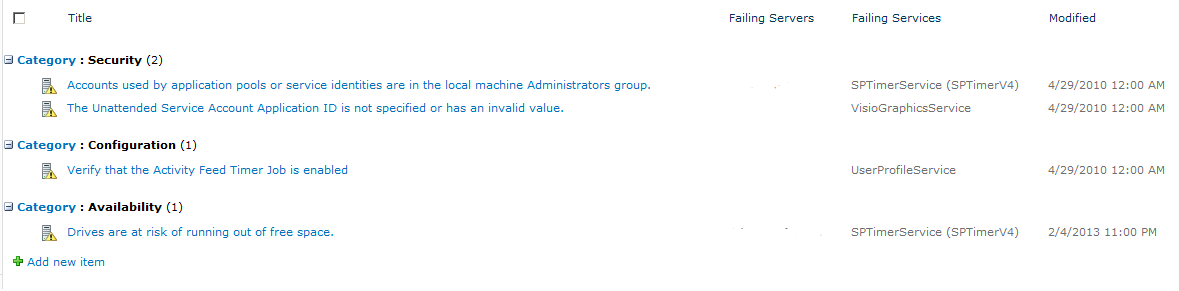
SharePoint health analyzer is a functionality which highlights the problems that are there with the servers in the farm.

As you can see, it highlights as a top notification with view these issues link.


It highlights the problem in different categories like availability, security, performance and configuration.


It also shows if it's the error or it is the warning. If it is the error , it highlights as a red circle with cross in it, if it is warning it shows as a yellow triangle with exclamation mark.

There are certain rules that are already written in Analyzer which can also be enabled or disabled. You can also select should it repair automatically or not. You can also see the schedule defined for that rule. We can also create our own rule and add it here.


When these rules execute, SharePoint health analyzer creates the report and writes it to the list called SPHealthReportsList. This is just a speciall type of list created for the SharePoint health related issues.

The default view for the health issues is set to not to show anything than the severity is not equal to 4 - success.


Now we will have a look on how we can access the information of health report of SharePoint programmatically.

I am showing this as a part of button click, you can write it the way you want.

private void btnHealthAnalyzer_Click(object sender, EventArgs e)
        {
            try
            {
                SPHealthReportsList lstHealth = SPHealthReportsList.Local;

                if (lstHealth != null)
                {
                    SPQuery queryHealthData = new SPQuery();

                          queryHealthData.Query =
                        "<OrderBy><FieldRef Name=\"Created\" /></OrderBy>";

                    SPListItemCollection healthresults
                        = lstHealth.GetItems(queryHealthData);
                    DataTable dt = new DataTable();
                    dt.Columns.Add(new DataColumn("Title"));
                    dt.Columns.Add(new DataColumn("Created"));
                    dt.Columns.Add(new DataColumn("Category"));
                    dt.Columns.Add(new DataColumn(gtfcvb 3"Remedy"));
                    dt.Columns.Add(new DataColumn("FailingService"));
                    dt.Columns.Add(new DataColumn("Severity"));


                    if(healthresults.Count > 0)
                    {
                        foreach (SPListItem item in healthresults)
                        {
                            DataRow dr = dt.NewRow();
                            dr["Title"] = item["Title"];
                            dr["Created"] = item["Created"];
                            dr["Category"] = item["Category"];
                            dr["Remedy"] = item["Remedy"];
                            dr["FailingService"] = item["Failing Services"];
                            dr["Severity"] = item["Severity"];
                            dt.Rows.Add(dr);
                        }

                        bindingSource1.DataSource = dt;
                        dataGridView1.DataSource = bindingSource1;                                             
                    }
                }
            }
            catch (Exception ex)
            {               
                throw ex;
            }
        }

and here is the output that you get

I hope this helps.

Sunday, February 3, 2013

Get SharePoint Web Application URL and path programmatically


Sometimes you may would like to get the URL of the SharePoint web application. Assume that you have a web application created but yet you have not created the site collection.

There may be a case to get the URL and even sometimes the port on which your web application is running programmatically.

You do not get these information directly via SPWebApplication object property. You can get this like shown below.

Hope this helps.

Saturday, February 2, 2013

SPFarm returns null


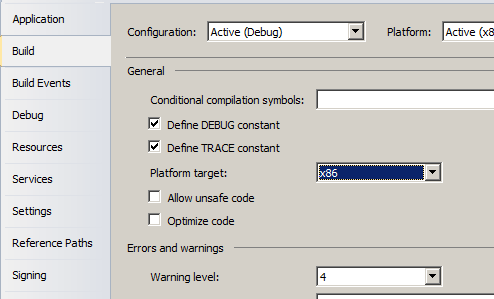
Have you ever been into a situation when you have written a code which initiate a SPFarm with simple line of code and when you execute, you get SPFarm as null though you are running windows application on the server itself. What went wrong?


So go to the project properties and check for the build version. When you create a project, there are chances that the project is created in the x86 environment, so go ahead and change it to x64 because SharePoint code cannot run in x86 set up.


Problem must be solved now.

Sunday, January 6, 2013

What is an App in SharePoint 2013


App is similar to a web part. One main key difference is everything is at the client side and not on the server side when you write a code developing an app which is called client web part.

In SharePoint 2013 Lists and Libraries are now termed as apps.

SharePoint now has its own app store where we get some free apps and some paid apps which can be installed and then can be used inside SharePoint.

There are three hosting options when you create app for SharePoint.

1) SharePoint hosted - On Premises.
2) Externally hosted
3) SharePoint Online - Sandbox solutions can be created. (deprecated now in SharePoint 2013) or new apps web part (client web part) can be used.

Certain important points about an app are :
  •       App cannot have any server side code.
  •      Apps  get created in a special “app web” on a special URL which is isolated from the original SharePoint web. Each app is a part of dedicated site collection.
  •      App does not have permission to talk to the parent site or site collection
  •     App cannot talk to the host site. ( a site in which app is displayed)
  •       Apps can be created using Visual Studio 2012     or using "Napa" Office 365 Development Tools
So SharePoint 2013 apps do not live in SharePoint rather they execute within the browser client or in a non-SharePoint server such as IIS or Windows Azure.

Apps can only be added by users with Full Control permission to the site. As mentioned earlier Apps can be installed from the centralized app store from on premises SharePoint or from public app store.

Apps can also be opened as a full browser screen or can also be a part of page. When we want app as a part of page we can use app part just like a web part to display that app in the app part. App part will display content of that app part in Iframe html element.

Regardless of how you authenticate your app with SharePoint, you need to have user consent to perform actions. You declare the required permissions in the app manifest file while developing, and the user is asked to grant or deny those permissions to the app during installation.

You can connect your app with just about any internal or public web services, take advantage of the new OAuth 2.0 support in SharePoint, and use the Representational State Transfer (REST) and client APIs (JavaScript and .NET) to integrate and connect your app with SharePoint.

There is a list of available apps that can be downloaded (some free / some paid versions) from Microsoft market place for SharePoint 2013.


Thursday, January 3, 2013

What's new in SharePoint 2013


Here we are with new SharePoint 2013. With this edition comes lots of fun and also up to some level disappointment. Well, there are more fun than disappointment hence a good news.
First let us see what all new features of SharePoint 2013 and what all product family now we have.

First SharePoint 2013 is of course a next version of currently successfully running SharePoint 2010.

Just like SharePoint Foundation 2010 we also have SharePoint 2013 foundation which is again a free utility that can be downloaded if you have Windows Server 2008 R2 with SP1 or new Windows Server 2012.

we also have licensed SharePoint 2013 on premise version or the cloud version which is in office 365.

Covering everything about SharePoint 2013 would be very difficult in a single post. So we will divide the posts and will post them as separate posts.

It would only run on 64 bit machines and will require SQL Server 2008 R2 with SP1 or new SQL Server 2012.

Ideal RAM should be between 8 GB to 24 GB. (making hardware more expensive with each iteration)

Plus Microsoft has come up with new Visual Studio 2012 which is tightly integrated with SharePoint 2013. Visual Studio 2012 has a lot of new features eases the SharePoint 2013 development.

Of course we now also have SharePoint Designer 2013 as well as Office 2013 products.
So let's dive into the new features that has been introduced or enhanced from the previous version.

1) Everything is App

Now we need to think of almost everything as an App. Lists, Libraries, Calendar and even sites are apps. You can create an app and then publishes to the corporate app web application or to the Microsoft Store. Remember that when you create an app, you will work with client object model and not server object model. You can use ECAM script, HTML and jQuery to interact with SharePoint 2013. you can options to host your app either in SharePoint itself or on the cloud - provider hosted.

The advantage is Microsoft is going to have a dedicated store for SharePoint where developers from all around the world would be publishing their apps for SharePoint which then can be consumed by other developers based on contract/license.

Company developed apps can be hosted in internal app catelog. They enable you to use cross-platform standards, including HTML, REST, OData, JavaScript, and OAuth.

We already have few apps ready to go for SharePoint 2013 and here they are.

http://office.microsoft.com/en-us/store/apps-for-sharepoint-FX102804987.aspx

2) Create / Edit Master Pages

This is one of the biggest improvements over the last version.

You can simply create an HTML page with CSS and images and then convert this HTML page into the master page. Does that really make you read twice? Yes, you're right. We can now convert HTML into the fully functional master page. you also get a preview of new master page before applying.

3) Image duplicity

You can have all your images in a site and then can define the variants of those images that you would like to use. You can have one single image and can use this image in different way like with different height, width and even by cropping an image.

4) Windows 8 Style
You feel like you are using Windows 8 UI metro look as we have now tiles at most of the places.

5) Contemporary view for Mobile

We now have new contemporary view for mobile. This view is available in HTML 5 to those who uses Windows Phone 7.5 or above and IE 9 and above, iPhone 4 or above, Safari 4 or above and Android 4 or above.

We can also have full desktop view of SharePoint in smart phones.

6) Drag and Drop to library

Now we can upload the documents using drag and drop from the desktop. Files will be uploaded to the document library showing the progress bar.

7) New context menus

We now have more clear context menus for list items and documents.

8) Share the documents

Now we can select document and then share it with specific person / user with personalized message. After this email will be sent to the user so that user can access the document.

9) Social experience has improved

Now you can follow a document, list item and also users, posts etc. You can do a micro blogging.

There is a new community site available where you can define you ideas, team, contributors and can also give them ranks / raputations based on the answers that they give when someone post a question. You can create badges.

10) Preiew of Documents

Now in document library when you hove the mouse over the document, we get to see the preview of that document right there.

11) SkyDrive integration

You can synchronize your contents to your desktop with the SkyDrive.

12) BCS enhancements

Now it also suports oData. automatic generation via Visual Studio.

13) create an app for Office 2013

We can create an app specially for Office 2013 so that users using office 2013 can interact with SharePoint 2013 right from office. We can use new development tool called "Napa" along with Visual Studio 2012.

14) App event handlers and remote event handlers

apps have their own events that we can handle like when app is installed or deleted. Remote event handlers can work with the remote components of the app for SharePoint.

15) Translation service, PowerPoint automation service, enhanced excel service and enhanced access services.

With new PowerPoint automation service you can now convert ppt or pptx files to PDF and other open XML formats.

Translation Service is a new service application in SharePoint 2013 that provides translation of files and sites. When the Translation Service application processes a translation request, it forwards the request to a cloud-hosted machine translation service, where the actual translation work is performed.

The Machine Translation Service application processes translation requests asynchronously and synchronously. Asynchronous translation requests are processed when the translation timer job executes. The default interval of the translation timer job is 15 minutes; you can manage this setting in Central Administration or by using Windows PowerShell

There is a lot of things that can be talked about SharePoint 2013. We will cover them as an when we come across to them and share it.

Tuesday, January 1, 2013

Wishing all our readers a very happy new year


As we are now in the year 2013, here wishing all our readers a wonderful and a very happy new year.

Hope all of you have an energetic start of new year. With this note, we would like to mention that after a break we are going to be back soon in fact very soon with lots of new posts of SharePoint.

Without forgetting we also would like to mention that now as we are in 2013 so as our posts will also be of SharePoint 2013 along with continuing with SharePoint 2010.

Keep visiting SharePoint Kings as you always do visit. Thank you for your consistent support.


Share your SharePoint Experiences with us...
As good as the SharePointKings is, we want to make it even better. One of our most valuable sources of input for our Blog Posts comes from ever enthusiastic Visitors/Readers. We welcome every Visitor/Reader to contribute their experiences with SharePoint. It may be in the form of a code stub, snippet, any tips and trick or any crazy thing you have tried with SharePoint.
Send your Articles to sharepointkings@gmail.com with your Profile Summary. We will Post them. The idea is to act as a bridge between you Readers!!!

If anyone would like to have their advertisement posted on this blog, please send us the requirement details to sharepointkings@gmail.com