Showing posts with label PowerShell. Show all posts

Thursday, August 15, 2013

Get Installed languages in SharePoint

In this post we are going to see how we can get all the installed languages for the site in SharePoint. This is especially useful when you have various language packs installed in the site.

I am going to create a simple console application. The code will also runs the same in SharePoint WSP solutions as well.

Here is a simple code in console application and the result when you run that.


If in your language settings you only have English selected, you would get only one language. so Its not about how many languages are available, it's about how many languages you have selected and allowed to be selected by user from the menu option.

I also would like to show you how you can get the same using PowerShell.

Open up SharePoint management shell and write down these steps. You are good to go.


I hope this helps.

Thursday, April 25, 2013

Save list as a template and create list from template using PowerShell

In this post we are going to see how we can save list as a template that saves it to the list template gallery and then how we can create a new list / library from the template from the saved template earlier.

Here is a simple script that we can write in PowerShell to do that

Here we are saving shared documents library as a template and then creating a library from the saved template.


[xml]$xmlfile = Get-Content ConfigFile.xml

foreach( $sitecoll in $xmlfile.Configuration.SiteCollection) 
{ 
    $site = $sitecoll.name
} 

$spSite= Get-SPSite $site

$web = $spSite.OpenWeb()

Write-Host -foregroundcolor yellow 'Saving list as a template.....'

$list = $web.GetList("/sites/SharePointSite/Shared Documents/")

$list.SaveAsTemplate("SDWITHDOCSET","SD with DOCSET","Shared Doc with Doc Set",1)

Write-Host -foregroundcolor Green 'Saving list as a template successfully'

Write-Host -foregroundcolor yellow 'Creating documents library from the template...'

$listTemplates = $spSite.GetCustomListTemplates($web)

$web.Lists.Add("SDFromTemplateUsingPS", "", $listTemplates["SD with DOCSET"])

Write-Host -foregroundcolor green 'Creating documents library from the template completed successfully.'

I hope this helps.

Thursday, March 28, 2013

Add web part page using PowerShell


Imagine a scenario where you need to create 100 web part pages with different templates. You would spend a lot of time creating those pages. One of the approaches can be having a PowerShell script which can create web part pages for templates that you want.

Here is a simple script that creates web part pages in a loop.

[xml]$xmlfile = Get-Content ConfigFile.xml 

foreach( $sitecoll in $xmlfile.Configuration.SiteCollection) 
{ $site = $sitecoll.name }

 $spSite= Get-SPSite $site 
$web = $spSite.OpenWeb() 
$layoutTemplate = 4 # Template code 
$web = $spSite.OpenWeb() 
$list = $web.GetList("/sites/SharePointSite/SitePages/")
 $i = 1
 while ($i -le 5)
 { Write-Host $pageTitle = "WebPartPage& + $i 

$xml = "<?xml version=""1.0"" encoding=""UTF-8""?&gt;

<Method ID=""0,NewWebPage""><SetList Scope=""Request"">" + $list.ID + "</SetList><SetVar Name=""Cmd"">NewWebPage</SetVar><SetVar Name=""ID"">New</SetVar><SetVar Name=""Type"">WebPartPage</SetVar><SetVar Name=""WebPartPageTemplate"">" + $layoutTemplate + "</SetVar><SetVar Name=""Overwrite"">true</SetVar><SetVar Name=""Title"">" + $pageTitle + "</SetVar></Method>"

 $result = $web.ProcessBatchData($xml)

 $i++ 

Write-Host -foregroundcolor Green $pageTitle 'created successfully' 

}

and when you run here is the output of the script and then final result


If you observe closely here we have specified layouttemplate, we have specified 4. This related to various templates like three column, four columns, headers the template that we select while creating web part page.

 Possible LayoutTemplate values are :

# 1 - Full Page, Vertical
# 2 - Header, Footer, 3 Columns
# 3 - Header, Left Column, Body
# 4 - Header, Right Column, Body
# 5 - Header, Footer, 2 Columns, 4 Rows
# 6 - Header, Footer, 4 Columns, Top Row
# 7 - Left Column, Header, Footer, Top Row, 3 Columns
# 8 - Right Column, Header, Footer, Top Row, 3 Columns


Thursday, February 28, 2013

Custom page not found page in SharePoint


Though SharePoint is almost very good for maintaining links but still there may be a chance where the link might be broken at any point of time in entire site hierarchy.

You may have any document link on the page and then the document is deleted or a link which points to the page and that page has been moved to some other page or deleted, then user end up navigating to the page not found.


Wouldn't that be nice if a user gets some nice message with some proper image and message.

We can do this by creating custom page for the web application which will act as a custom page not found page.

See what happens when a user tries to navigate to a page which does not exist.


Remember we can set a custom page not found at the web application level. we cannot have that at site or site collection level.

The best way to do this is copy the existing 14\TEMPLATE\LAYOUTS\1033\custom404.html and rename it to another name. Open the page in HTML complaint editor or in Visual Studio and edit the page with image or content as per your choice.


Copy the page at the same location under 1033.

Following is the script that will do this job.

$webapp = Get-SPWebApplication {web application URL}
Write-Host $webapp.Name
$webapp.FileNotFoundPage = "Custom404.html"
$webapp.update($true)
Write-Host $webapp.FileNotFoundPage

So now go ahead and try to open the page from site which does not exist.


You can also set the page not found via feature. Ideally have a web application level feature because this setting is for the web application and cannot be customized for the site collection or the web.

public override void FeatureActivated(SPFeatureReceiverProperties properties)
     {
         SPWebApplication webApp = properties.Feature.Parent as SPWebApplication;
         if (webApp != null)
         {
             webApp.FileNotFoundPage = "custompagenotfound.html";
             webApp.Update(true);
         }
     }

I hope this helps.

Monday, February 25, 2013

Change Search result page URL using PowerShell


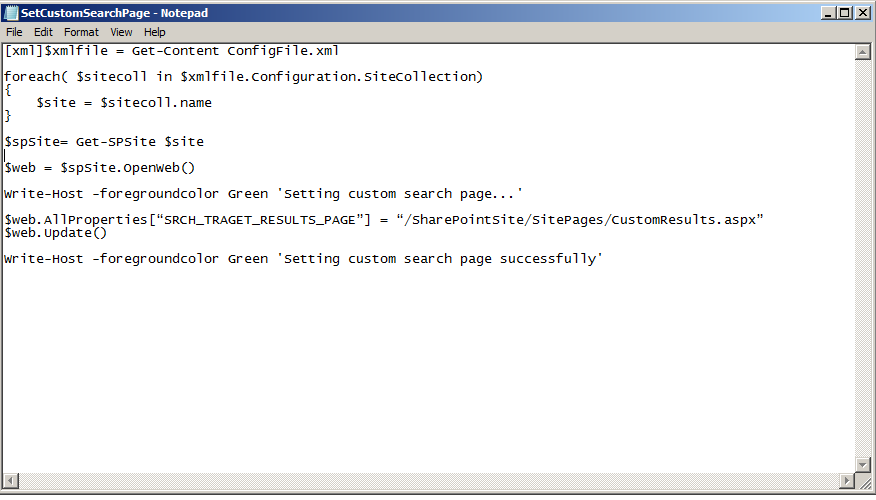
You can change the search result page URL using PowerShell. You may require this depending on configuration you might do at the time of deployment.

All you have to do is use below line in PowerShell script and you are good to go


 Now go to site settings page and under site collection administration click on search settings. You will find that your search result page has been changed.


Make sure that you add search refinement panel and search core results web part on the new search result page.

Saturday, February 16, 2013

Get choice values of choice column through PowerShell


If you have a choice site column or even a field in list , library and want to get the choices values that is present in that field , here is how you can get that.

To demonstrate, I have one site column with name US States which holds US state names. 


Let's write PowerShell to get this site column reference and then take out all the choice values in it.

If you would like to know what this PowerShell initial few lines are all about,  I would recommend reading Get Values From Configuration post and then continue.

Now run the script

and here is the result. you get each choice value in the choice column.


I hope this helps.

Monday, February 11, 2013

Change Document Library folders title through Power Shell


In this post we will see how to change the title of the folders in document library.

Here is before running the script.


Here is the script. If you are not aware what is happening in this script, I would recommend reading get value from configuration file post.

[xml]$xmlfile = Get-Content ConfigFile.xml
 $site = ''
$web = ''
$listName = 'Shared Documents'
 foreach( $sitecoll in $xmlfile.Configuration.SiteCollection)
{
    $site = $sitecoll.name              
}
 $spSite= Get-SPSite $site
 $web = $spSite.OpenWeb()
 Write-Host -foregroundcolor Green 'Site URL' $site
 $list=$web.Lists.TryGetList($listName)
 foreach($folder in $list.Folders)
{
if($folder['Title'] -eq 'Folder1')
{
   $folder['Name'] = 'NewFolder1'
   $folder['Title'] = 'NewFolder1'
   } elseif($folder['Title'] -eq 'Folder2')
{
    $folder['Name'] = 'NewFolder2'
   $folder['Title'] = 'NewFolder2'
 }
 elseif($folder['Title'] -eq 'Folder3')
{
    $folder['Name'] = 'NewFolder3'
   $folder['Title'] = 'NewFolder3'
 }
 elseif($folder['Title'] -eq 'Folder4')
{
   $folder['Name'] = 'NewFolder4'
   $folder['Title'] = 'NewFolder4'
 }
 elseif($folder['Title'] -eq 'Folder5')
{
    $folder['Name'] = 'NewFolder5'
   $folder['Title'] = 'NewFolder5'
 }
 $folder.update()
 }

we are opening the site and then taking the reference of the library and then iterate through all folders of the library and then compare the title of the folder and then change folder properties.

Once you run the script, all folders names and title will be changed. 


I hope this helps.


Wednesday, February 6, 2013

Get values from configuration file in Power Shell script


When you write a Power Shell script sometimes you may require to get some parameter values from the configuration file. While deployment usually we need to passing some values from the configuration file.

You can create configuration file and take those values from it to the PowerShell script. Example we may need to create sub sites or lists / libraries or content types etc. To do this you need site URL to be passed to the script.

You may also need to pass in list name with site URL post deployment when the system is in use and later you want to make any changes.

We can create XML file which has data that can be passed to the PowerShell.

Let's create one configuration file.


 here we have create one XML file which has top level element as configuration. inside that we have site collection where we have passed one site collection URL.

Let's now create one power shell script and get the value from XML file to the script.


What we have done is we took the xml file reference and then declared one variable in which we will store site URL.

After that we get the value of that specific site collection URL. We have written loop here because you can also define multiple <name> inside <site collection> tag.

As of now we are considering one single site collection.

and then we print the site URL in green color with Write-Host options.

Now open the SharePoint 2010 management shell.


and execute the script by typing ./PowerShellScript.ps1

and here is what you get.
In the same way, you can define as many tags as you like in XML file and can take those values inside the power shell script.

I hope this helps.


Share your SharePoint Experiences with us...
As good as the SharePointKings is, we want to make it even better. One of our most valuable sources of input for our Blog Posts comes from ever enthusiastic Visitors/Readers. We welcome every Visitor/Reader to contribute their experiences with SharePoint. It may be in the form of a code stub, snippet, any tips and trick or any crazy thing you have tried with SharePoint.
Send your Articles to sharepointkings@gmail.com with your Profile Summary. We will Post them. The idea is to act as a bridge between you Readers!!!

If anyone would like to have their advertisement posted on this blog, please send us the requirement details to sharepointkings@gmail.com