Showing posts with label Search. Show all posts

Wednesday, March 13, 2013

Add managed property to advance search web part


If you are using advanced search web part and want to add your own custom property to the properties list, then you can do it very easily.

First you need to have managed property which is mapped with the crawled property. If you would like to know how to get crawled property and how to map the managed property with the crawled property, you can refer

Consider we have one advance search web part and a managed property with us. Go ahead and edit the advance search web part.


Prior adding our department property that we already have , let us see what all things that we can do with advance search web part.


If you remove all which is highlighted in above image, you can see that languages options go away from search.


We also have the document type


If you remove all which is highlighted in below image, you can see that excel and powerpoint document type option go away.


and here is what you get.


Now you should be able to get the results by specifying your custom property. I hope this helps.

Tuesday, March 12, 2013

Add mapped property to search refinement panel - Part 1


In this series I am going to show you how you can add custom property from document library or list to the search refinement panel.

Search refinement panel appears left hand side when you perform a search. If you observe closely, you get to see meta data associated with the result set that is returned from the search query.

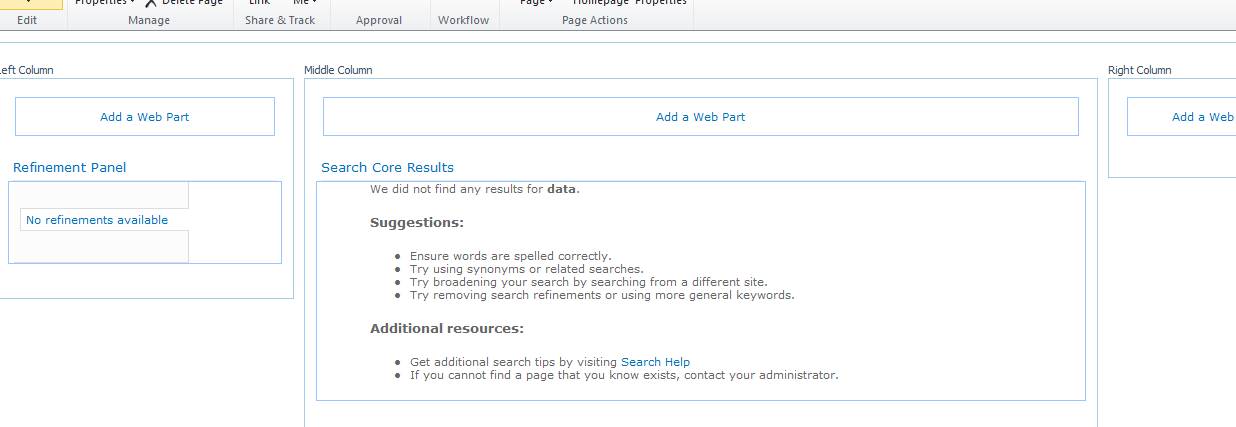
 First create one web part page with at least three columns by selecting proper web part template. then edit the page and add the web part. Select search category and then add search refinement panel on the left web part zone and search core results web part on center web part zone.


Let's say you have a document library and you search for some word. you find the result in the search results but you would want bifurcate the result based on few meta data properties of the document library, then you need to modify the search refinement panel.

Before diving into this let us have one document library with some meta data properties.

Make sure that you have the values in the field for which you want to create mapped property. Otherwise search will ignore the field and will not generate crawled property. The process is first crawl the content so that you get crawled property generally starts with ows_fieldname and then create mapped property and then use mapped property in the search page.

Coming back to the document library, we have something like this in our hand.


Now go to the central administration. Click on application management. then click on manage service applications and click on search service application. then click on content sources. now full crawl the content source local sites which generally has all the web applications.


Let the full crawl complete.

Now click on the metadata property from the quick launch on the same page. then click on the crawled property.


now search with department which is our column in the document library.


click on ows_department to verify that this is the property that we are looking for. once you click on the property, you actually get to know that where this property has been created from. This way we can be ensure that this is the correct property. On our case we can see that it is from our document library.


Now come back to the screen and click on metadata property and then click on new managed property. Give a name ManagedDepartment , click on add mapping.


now search department , you will get the crawled property and then select ows_department and then click on ok.


Now we need to crawl one more time. Full crawled the content one more time.

Let the crawl complete.

Now come back to the search result web part page. edit the page and then edit the search refinement panel web part.


Make sure that the Use Default configuration is not checked. By default it is checked. If you do not unchecked this then even you do any customization it will not get into the account.

Click on filter category definition. this opens up a text editor where we need to add our custom department property. Add following entry between categories. Make a note that ShowCounts is set to Counts and most importantly threashold value is set to 0. If this is not set to 0 that means in the search result if the property is returned for that many number of times then only department will appear in the search refinement panel. Another attribute to note is the mapped property. this is the name of the managed property that we created earlier.


And this is the result of it. We now have department appearing in the refinement panel and that too with count.


I hope this helps. In next post of this series we will see some more interesting topic for searh refinement panel.

Friday, November 21, 2008

FullTextSqlQuery with QueryText max length issue

Hi all,

As mentioned in one of our previous post for search part 2
we are using FullTextSqlQuery object from Microsoft.Office.Server.Search.Query.

But we are facing problem for while creating query and assigning to QueryText method.

QueryText method accepts string object but it has a limitation.

You can assign maximum 4096 character string to QueryText.

We came to know about this by disassembling this DLL.

What we found is strange thing.

While setting QueryText property it will check

If object is type of FullTextSqlQuery then QueryText max length equals to 4096 char

Else if object is type of KeywordQuery then QueryText max length equals to 1024 char.

If length is more that this limit then it will give ArgumentOutOfRangeException();

We don’t know why is it so?

But just guessing that may be this limitation for rank optimization.

So conclusion is

FullTextSqlQuery QueryText should be < 4096 char
KeywordQuery QueryText should be < 1024 char.

Tuesday, September 16, 2008

SharePoint search Step by Step (Part 2)

Hi we are back for search again.
If you missed then here is the link of SharePoint search Step by Step (Part 1)

Now as per continuation to the part 1 we are discussing for the second step.
After getting result in SharePoint default search we will get the crawled content programmatically.
Now for that we referred a lot of link on the net and here are the most useful ones and we are very thankful to them for guidance.
MSDN: Windows SharePoint Services Search SQL Syntax

The secrets of SQL Syntax Queries for Relevant Results in MOSS 2007 Enterprise Search

Here we go.

First of all we will show you how to search for a particular lists column programmatically. If you want the search from some related lists or entire site or in documents only then everything can be done but for that concept should be clear.

As you already created your separated content source (check part one). now we have to create a scope for the same.

How create a Scope?
Go to “Shared Service Provider site (SSP site)”
Go to “Search Settings.”
In the “Scopes “section click “View scopes”
Click in the “New Scope “
Give Title and description and press ok.
After that click on add rules link appear as per screen shot.


Click on that Add rules link.
Here is the catch.
Please refer this technet link for Manage scope rules

Now as we are searching from only one specific list so we are using the first option (Web Address (http://server/site)).


After adding rule to the scope go to search setting page and click “Start update now”


Wait for scopes to Update.
After that click in view scopes in your newly created scope items is start appearing.
Now time to create a metadata property.

How to create metadata property?

Go to SSP site -- search setting -- Metadata property mappings – New Managed Property


Name the property

Select second option[Include values from a single crawled property based on the order specified]

Click on add mapping


Select a “Sharepoint” category.
And find your column. It should named with prefix “ows_(your field name)”
Press ok

If you will not find your column then crawl your content source once.
And do not forget to check Allow this property to be used in scopes.
Only then we can use it in Code.

Full crawl your content source.

Now you are ready to rock.

Here is the simple code snippet for the query
SPSite spSite = new SPSite("<<your site name>>");
ServerContext src = ServerContext.GetContext(spSite);

using (Microsoft.Office.Server.Search.Query.FullTextSqlQuery fquery = new Microsoft.Office.Server.Search.Query.FullTextSqlQuery(src))
{
fquery.StartRow = 0;
fquery.RowLimit = 10;
fquery.HighlightedSentenceCount = 3;
fquery.EnableStemming = true;
fquery.TrimDuplicates = false;
fquery.KeywordInclusion = KeywordInclusion.AllKeywords;
fquery.ResultTypes = ResultType.RelevantResults;
string strcolumns = "Rank,Title, IsDocument,WorkId,Title,Author,HitHighlightedSummary,Size,Path,PictureThumbnailURL,CollapsingStatus,SiteName,Write,Description,ContentClass,HitHighlightedProperties";

fquery.QueryText = "SELECT " + strcolumns + " FROM Scope() WHERE ";
fquery.QueryText += " \"scope\" ='<<your ' AND ";
fquery.QueryText += “ FREETEXT(<<Your managed property name”, '" + << your search text >> + "') ) ";
fquery.QueryText += " ORDER BY Rank Desc";
ResultTableCollection rtCol = fquery.Execute();
ResultTable relevantResults = rtCol[ResultType.RelevantResults];
DataTable dt = new DataTable();
dt.Load(relevantResults, LoadOption.OverwriteChanges);
<<bind dt with grid>>
}


There is another discussion for how to use FullTextSqlQuery.
We will try provide you full information regarding this code, that how this code works, soon.
Try this stuff and let us know where you stuck.

Saturday, September 13, 2008

SharePoint search Step by Step (Part 1)

This article is for How to using SharePoint search programmatically.

In this post we will show you only how to configure search from SSP.

Most of the time we have requirement for implementing custom SharePoint search. Because of custom business logic we need to search SharePoint content programmatically.

There is a lot of stuff available for SharePoint ECM search but not step by step from starting.

As this is our first post in search series so we are explaining the basic search.

The scenario: (in simple functional way)
We have a web application and in that a site collection.
In that site collection on the Top level site only we have lists and document libraries.
And we have to search on that site collection.
Search result will be on simple custom web part but not on the default one.
And the business logic must apply on result set. (We will take this in later posts)


Now here is how we start.
This post will explain how to configure SharePoint default search step by step.
Steps:
1) Make SharePoint default search up and running.
2) After getting result in SharePoint default search we will get the crawled content programmatically.
3) Use Microsoft.Office.Server.Search DLL to query and get specific result according to business logic.

Step 1)
Prerequisite: you must have and admin rights to configure search.
3 services should be started
1) Windows SharePoint Services Search
2) Office SharePoint Server Search
3) Indexing Service

Here is the link from where we got the basic reference.

First as per screen shot go to edit properties of SSP and change your password with the current one. This is none mandatory step but better to do so.


Go to SSP site.
Click on search setting.


Change Default content access account: with admin account


Click on “Content sources and crawl schedules”.
Edit “Local Office SharePoint Server sites”
Remove your site collection from Start Addresses and press ok.

Than create new contain source with Content Source Type as SharePoint Sites

And Start Addresses as your site collection. (that you removed from local office SharePoint Server Site)

And start full crawl


After these steps your default search should start.

After default search is running we will move towards get search result programmatically but you have to wait for the next post.


Share your SharePoint Experiences with us...
As good as the SharePointKings is, we want to make it even better. One of our most valuable sources of input for our Blog Posts comes from ever enthusiastic Visitors/Readers. We welcome every Visitor/Reader to contribute their experiences with SharePoint. It may be in the form of a code stub, snippet, any tips and trick or any crazy thing you have tried with SharePoint.
Send your Articles to sharepointkings@gmail.com with your Profile Summary. We will Post them. The idea is to act as a bridge between you Readers!!!

If anyone would like to have their advertisement posted on this blog, please send us the requirement details to sharepointkings@gmail.com